Visual · Explainable
Shikaku Area Puzzle for Kids
Partition the grid into rectangles so each rectangle contains one clue and its area matches that number.
- 4×4 first steps
- 5×5 and 6×6
- Staged guidance
Reason with area
Learn Shikaku in four steps
Follow one clue from its factor pairs to a rectangle that satisfies every rule.
Choose one clue
Start with a number near an edge or corner where fewer rectangles can fit.
List its factor pairs
Turn the number into possible widths and heights, such as 6 = 1×6 or 2×3.
Rule out impossible shapes
Reject any rectangle that leaves the board, meets another clue, or overlaps.
Draw the only rectangle
Place the surviving rectangle, then use it to narrow the remaining clues.
A complete partition
Four rules, one finished board
Every teaching board below uses rectangles from the same real generated definition.
One clue in each rectangle
A rectangle must contain exactly one number—never zero or two.
Area equals the clue
Count width × height. The number of covered cells must match the clue.
Cover every cell
When the puzzle is complete, no square in the grid is left empty.
Rectangles never overlap
Each cell belongs to one rectangle, so neighboring borders meet without crossing.
Grow at the right pace
Choose a challenge that fits
These previews come from real 4×4, 5×5, and 6×6 levels already supported by the workspace.
First area puzzle
4×4Factor-pair practice
Several forced rectangles make the first deductions easy to explain.
Standard challenge
5×5For learners who know the rules
Use board edges, clue positions, and forced shapes together.
Longer reasoning
6×6For more confident solvers
More candidates create longer mixed chains before a rectangle is forced.

Continue away from the screen
Print Shikaku for hands-on area practice
Prepare exact puzzle and answer pages for home, the classroom, or independent work.
- A4 and US Letter
- Color, low-ink, and black-and-white
- Optional exact answer pages
- One, two, or four puzzles per page
What this activity practises
Multiplicative area
Width × height becomes a visible relationship instead of an isolated formula.

Constraint reasoning
Each rectangle must satisfy several rules at the same time.

Sustained focus
Learners scan clues, compare candidates, and finish a complete partition carefully.
Ways to use Shikaku

Ready to partition?
Start with one clue you can explain
Choose a level and guidance style, list the factor pairs, and draw only a rectangle that satisfies every rule.
Shikaku questions
What age is Shikaku for?
Can one rectangle contain two numbers?
Does a larger board always mean a harder puzzle?
Does Hint fill the answer for me?
Are the printable answers the same puzzles?
Continue the logic practice
Try another real grid puzzle from the current bilingual puzzle collection.
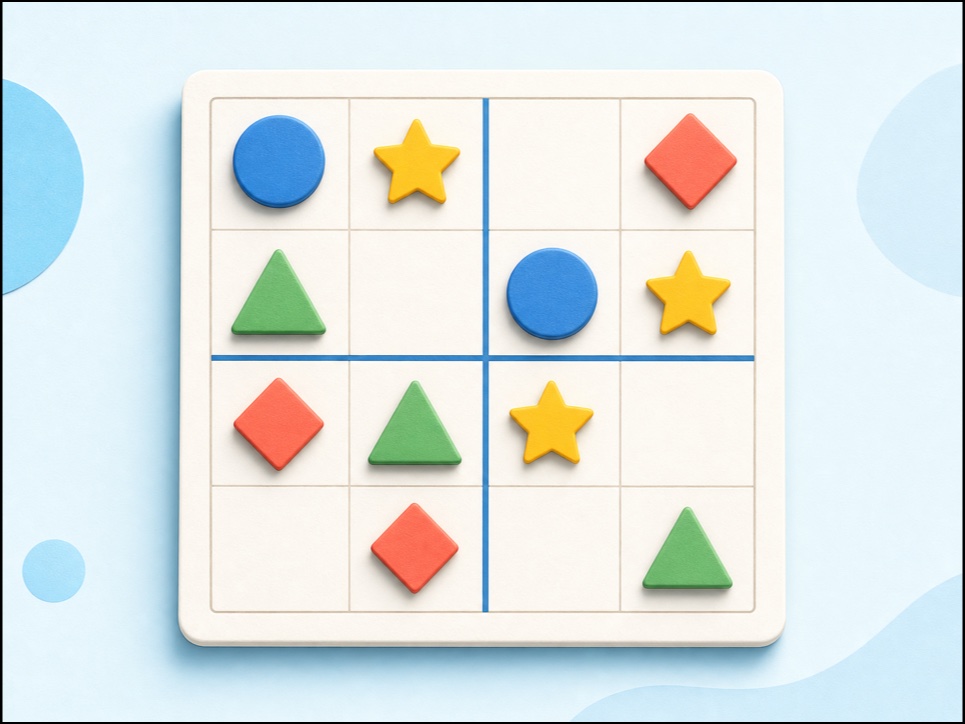 Picture SudokuPlay child-friendly 3×3 and 4×4 picture sudoku with shapes, keyboard and touch controls, hints, undo, and no sign-up.Open
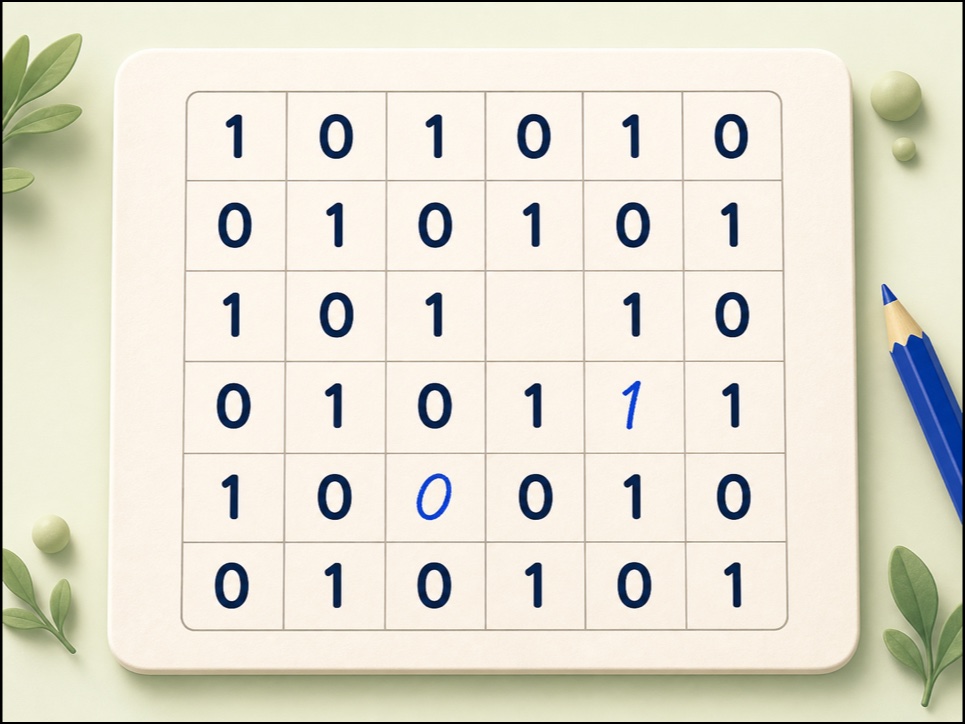 Binary LogicPlay 4×4 and 6×6 Binary Logic with two accessible symbol choices, keyboard and touch controls, rule-based hints, undo, redo, and check.Open
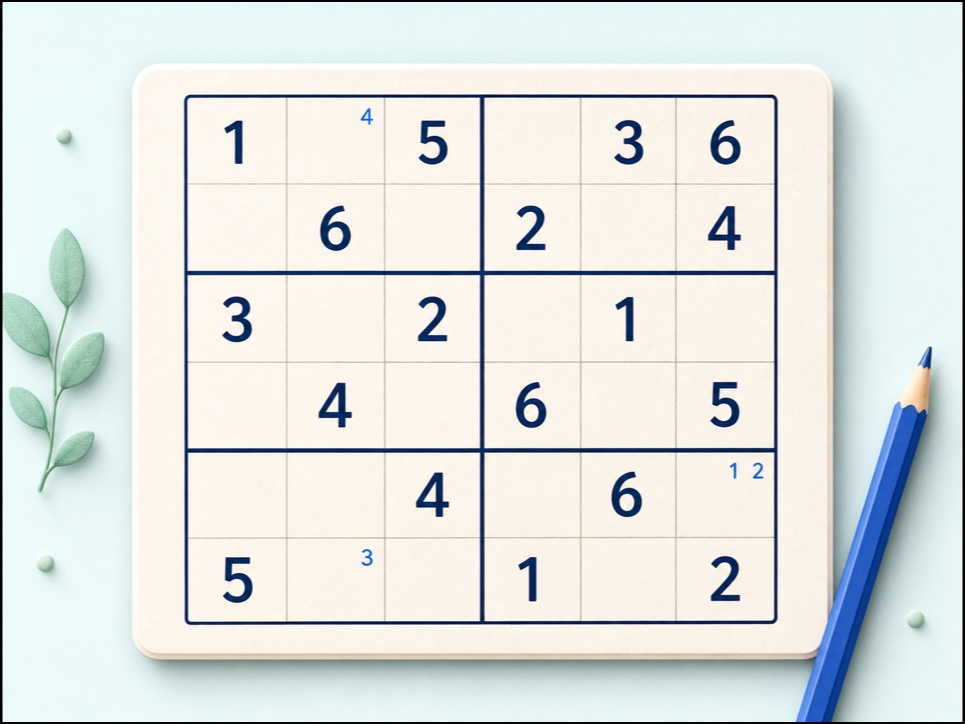 Classic 6x6 SudokuSolve child-friendly 6x6 Sudoku with digits 1-6, 2x3 boxes, notes, keyboard controls, checking, hints, undo, and redo.Open